How to remove or change the background on Vinted photos
A plain background makes items stand out in the Vinted feed. Here's how to get one, with or without an app, and how to keep edited photos honest.
Updated 2 min read
The short answer
The easiest way is to shoot on a plain background in the first place: a light floor, a plain wall or a sheet pulled tight. If the photos are already taken, a background remover or an app like FlipFast can put the item on a clean backdrop. Check the edges and colour afterwards so the edited photo still shows the real item honestly.
On this page
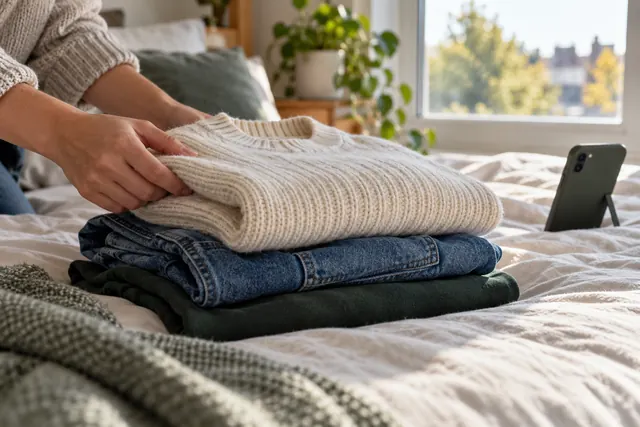
The item should be the only thing a buyer looks at. A messy bedroom, a patterned duvet or a pile of laundry in the corner pulls attention away and makes the listing look rushed. You can fix this before you take the photo, or after.
Option 1: Get a clean background while you shoot
This is still the easiest route, and it costs nothing.
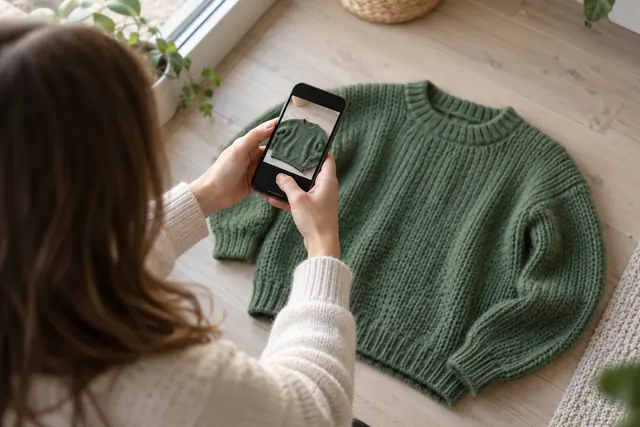
- A light floor. Wooden or laminate floors make great flat-lay backgrounds. Shoot from straight above.
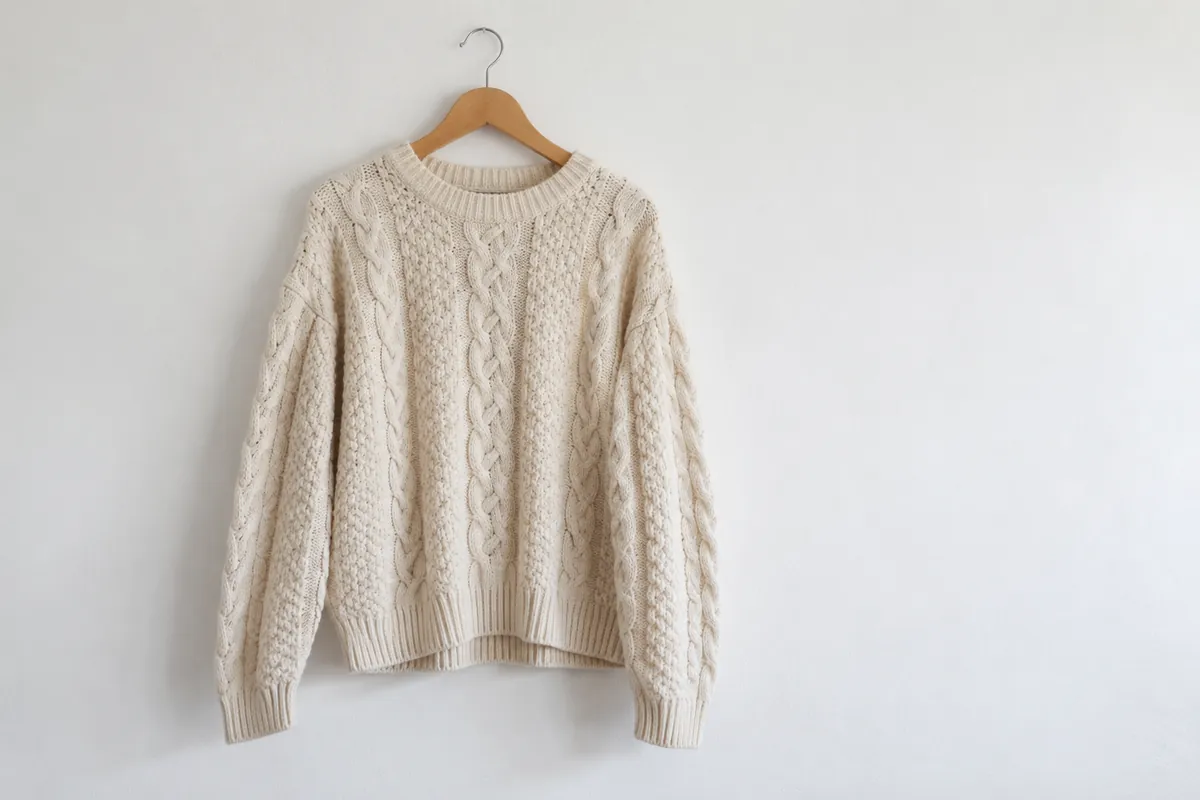
- A plain wall. Hang the item on a hanger from a door frame or a hook against a light wall.
- A sheet or poster board. A clean white or grey bedsheet, pulled tight, works almost anywhere. A large piece of card is even neater.
Use the same setup every time and your wardrobe starts to look like a shop.
Option 2: Change the background afterwards
If you've already taken a batch of photos in a cluttered room, editing is faster than reshooting.
General background removers cut the item out and leave you with a transparent or plain backdrop. Most work well on clothing laid flat and struggle more with fluffy or sheer fabrics, so zoom in and check the edges before you post.
Doing it inside FlipFast
FlipFast does this as part of writing the listing. Choose a photo fix and it can tidy the layout and put the item on a new background, such as a white wall, concrete, a wooden floor or carpet. It can also smooth creases and fix flat lighting at the same time. You see the result and decide whether to use it.
On the free plan the edit applies to your cover photo. Pro edits every photo in the listing and lets you save your own backgrounds, so all your listings can share the same look.
Keep it honest
Changing the background is fine. Changing the item isn't.
- Keep the colour true. If the edit shifts the colour, fix it or use the original.
- Don't hide flaws. Show marks and wear in a separate, unedited close-up.
- Use photos of the real item. Stock photos or someone else's pictures can mislead buyers and lead to claims.
- Check the edges. A badly cut-out sleeve looks worse than a plain floor.
Which should you choose?
If you're listing a few things, a plain floor and a window will do the job. If you're photographing twenty items in a cramped room, editing the background afterwards saves you an afternoon, and it's one less thing to set up.
Quick answers
Cleaning up the background or the lighting is fine. The item itself must look the way it really is. Don't hide flaws or change the colour, and use photos of the actual item you're selling.